I've had the pleasure of working with Tableau Server administrators for over a decade and a half now, and one question that comes up somewhat frequently is some variation of: "A user says they can't see this dashboard, but from my end it looks fine. How do I see what they see?"
In most cases the answer, until now, has been: outside of Tableau Desktop, you can't. Not easily, anyway.
The Typical Approaches
How you handle this depends on your environment. If you're embedding Tableau in a custom application, your wrapper app can impersonate the user and render the viz as them. This works well when it's available, but it requires that you have embedding set up in the first place and that your portal actually implements impersonation. If you're not in that situation, it doesn't help you.
For row-level security issues, the workbook author or other Creators could troubleshoot in Tableau Desktop. This is effective, but now you're potentially pulling someone else into the investigation and waiting on their availability.
You can also check effective permissions in the Tableau Server content permissions dialog. It's easy enough to access, but interpreting the results takes some practice — and it only tells you about permissions, not what the user actually experiences when they navigate the server.
My go-to approach has been scheduling a Zoom call for a screenshare. I like this because you can troubleshoot user behavior and technical issues at the same time — sometimes the problem isn't permissions at all, it's just that the user doesn't know where to click. But scheduling a call isn't always convenient, and sometimes you just need a quick answer without the coordination overhead.
Introducing: ViewAs
ViewAs is a small application that lets Tableau Server administrators view the server exactly as another user sees it — through the actual UI, not just the API.
The workflow is simple:
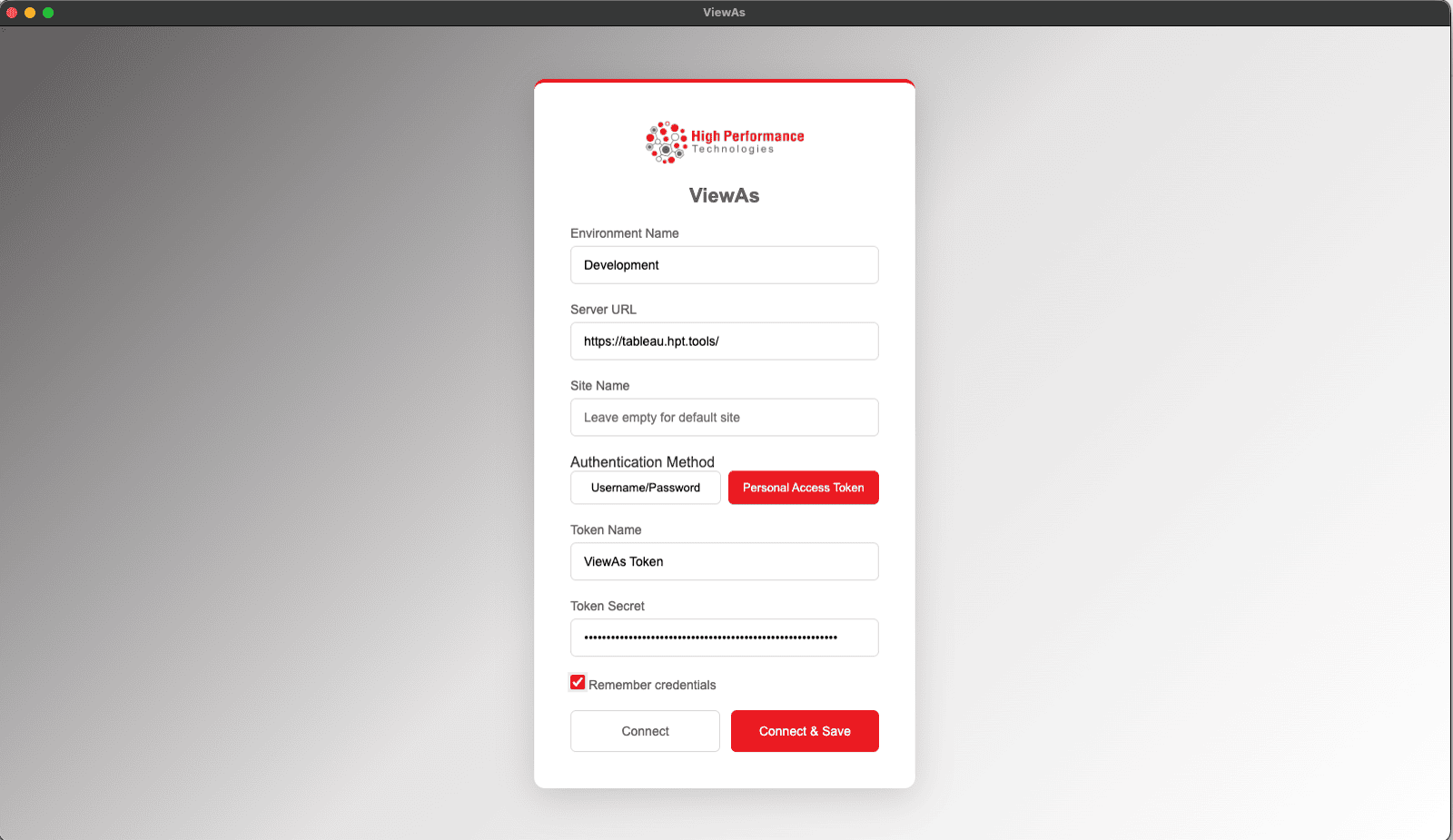
- You authenticate as yourself
- Select the user you want to impersonate from a searchable list
- Launch a session
From there, you see what they see. Their navigation, their row-level security filtering, their dashboard behavior, their effective permissions at every level. When someone reports they can't see the Sales Dashboard, you can verify in thirty seconds whether the issue is permissions, RLS, or something the user is doing on their end.
This is also useful for validating RLS across tenants, testing how dashboards appear for different user roles, verifying that new users have appropriate access on their first day, and documenting access controls for audit purposes. Automation is still the right answer for anything you need to do repeatedly at scale — but manual validation lets you iterate quickly when you're building something new, and it gives you peace of mind that what you've built actually works the way you expect. Both have their place.
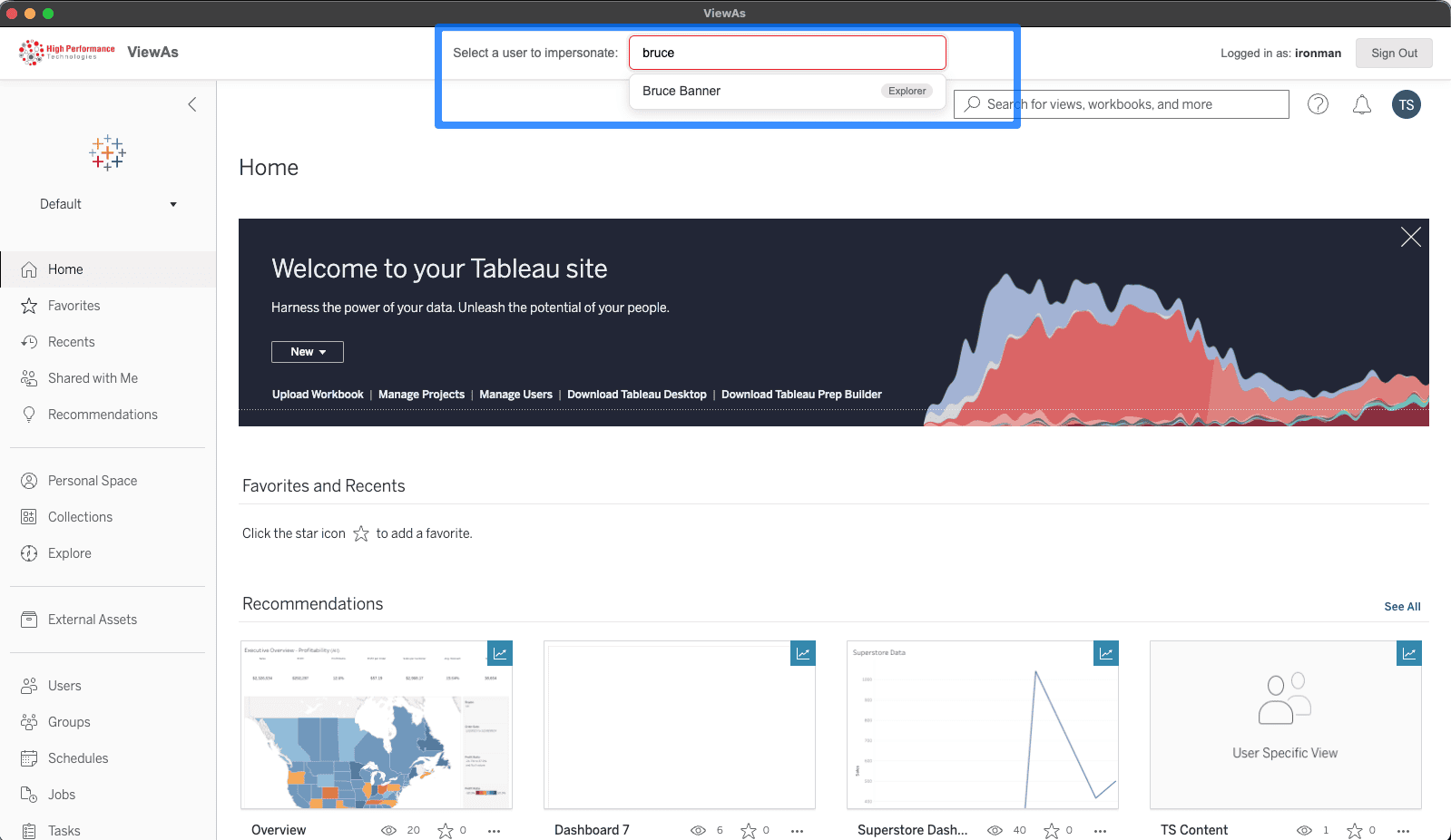
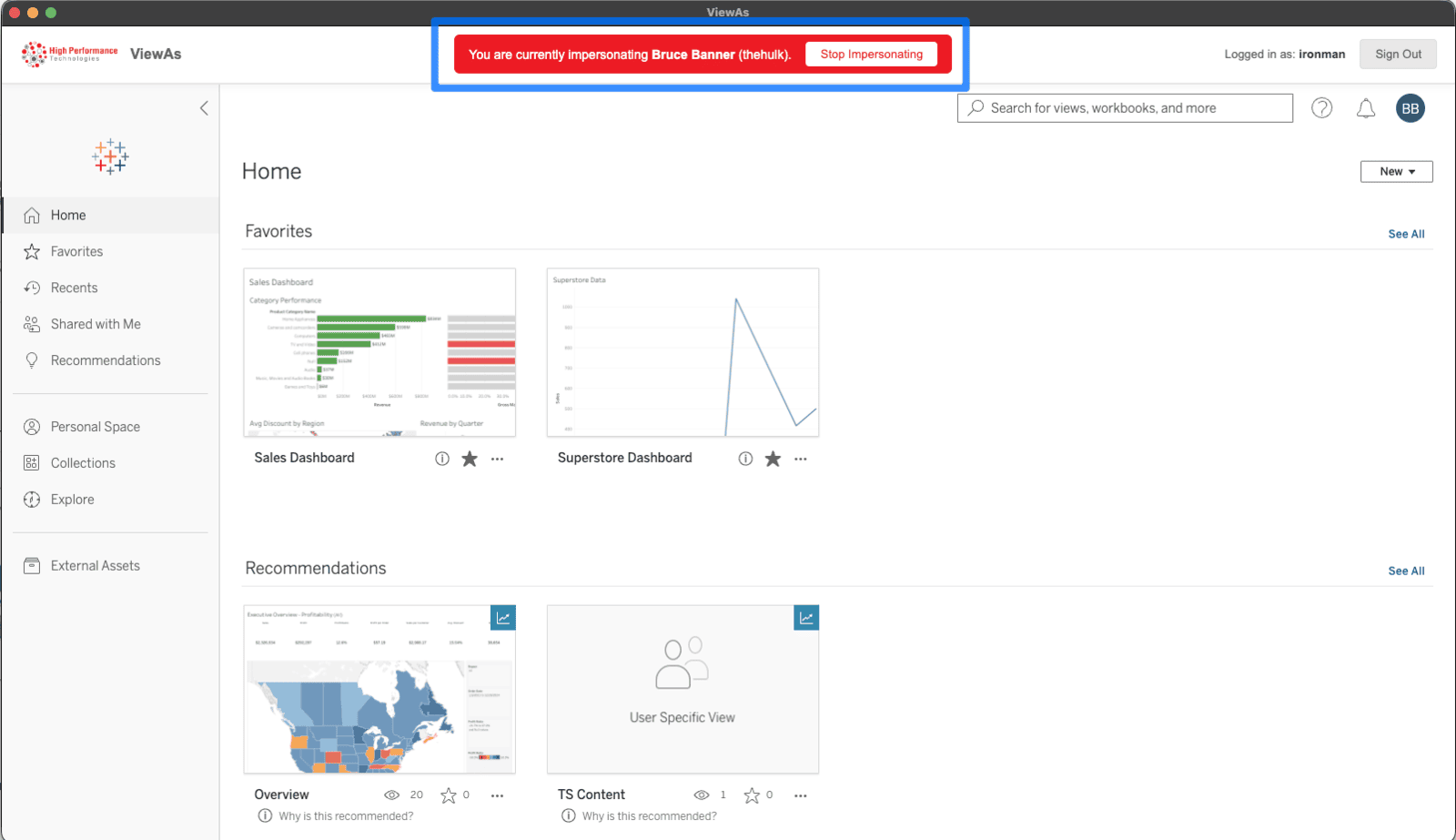
Tableau Cloud
This version of ViewAs is for Tableau Server on-premises deployments. Tableau Cloud has tighter restrictions around impersonation — API impersonation requires Connected Apps with JWT authentication, which is significant overhead just to debug a permission issue. I'm exploring options for a Cloud version, but the architectural constraints are real. If you're a Cloud customer running into these friction points, I'd like to hear about your specific scenarios.
Getting Started
ViewAs is available now for free at viewas.hpt.tools (email required for download).
It works on Mac, Windows, and Linux, and takes less than a minute to set up. If you're using Tableau Server authentication, you can sign in with your credentials directly. Otherwise, if you are using SSO or another method, you'll need a Personal Access Token.
Questions? Reach out at hello@highperformance.tech.