We talk with a lot of companies that want AI in their analytics practice, but aren't totally sure what that looks like. Many of them want it enough that they are tolerating some oddities they shouldn't be, especially as they're exploring feature sets that haven't yet proven their worth. Specifically, they're having to build/define the same data sources and metrics in the AI system, simply because the AI system can't handle connecting to what's already there.
I've been working a lot with Ana, the agentic AI analyst made by TextQL, and have been extremely impressed by how it's able to navigate querying and connecting data from many different data sources, including APIs. Its command of Python and the iterative nature of analytics is the best I've seen. So I thought it might make sense for me to have Ana use Tableau's VizQL Data Service API to connect to Published Data Sources on Tableau Server (or Cloud), and see how it handles interacting with and querying the very same data sources that Tableau dashboards use. It took some iteration but worked out well. So I'm showing you how I did it!
pssst. if you'd like to see me actually do this live, register for the webinar on the right. i'd love to see you there
Live Webinar · Dec 18
Unlock AI-Powered Analytics on Your Existing Tableau Data
What's VDS?
Tableau's VizQL Data Service API (VDS) gives you programmatic access to Published Data Sources on Tableau Server/Cloud. Since it's the same data sources your dashboards use (and therefore the same data model), you can reuse the field names, calculations, and relationships you've already defined. It automatically respects row-level security and permissions. There's no need to download extracts or hit underlying databases directly, risking bypassing the governance you've already established in Tableau. Instead, everything goes through Tableau's governance.
In contrast to the REST API, which is powerful for managing metadata and performing administrative operations, VDS provides a more direct way to access data. While the REST API allows you to download detail or summary data from specific visualizations, it requires an extra step. VDS lets you query the Published Data Source itself, just like the dashboards do, making it a more seamless option for accessing data.
Who or What is Ana?
Ana is an agentic AI analyst built by TextQL. It's excellent at querying and coding (especially making API requests), tool calling, and iterative analysis. It understands data structures and relationships intuitively, and can reason about analysis steps. It can hold context across many many steps, build on previous queries, and create artifacts like Streamlit apps, static visualizations, downloadable reports... even playbooks that email you or Slack you their results after they run. (Yes, it supports Teams too...)
And it's observable: you can see what it's doing, how it's doing it, and thanks to inline comments, why it's doing what it's doing.
Connecting Ana to Tableau with the VDS API
To connect Ana to Tableau's Viz Data Service, we need:
- Tableau Server/Cloud with Published Data Sources
- Ana (hosted by TextQL) as the AI analyst
- VDS API to let Ana query Tableau's Published Data Sources
Setting Up
Teach Ana about the relevant technologies using the Context Library
To start out, we gave Ana some context that makes it better at using the relevant tools. Ana has a context library where you can store information that can be dynamically added to a chat's context based on user roles or which data connectors are selected for the chat. As TextQL admins, we can add this context from the "Organization Context" tab on the Settings page. It's quite straightforward:
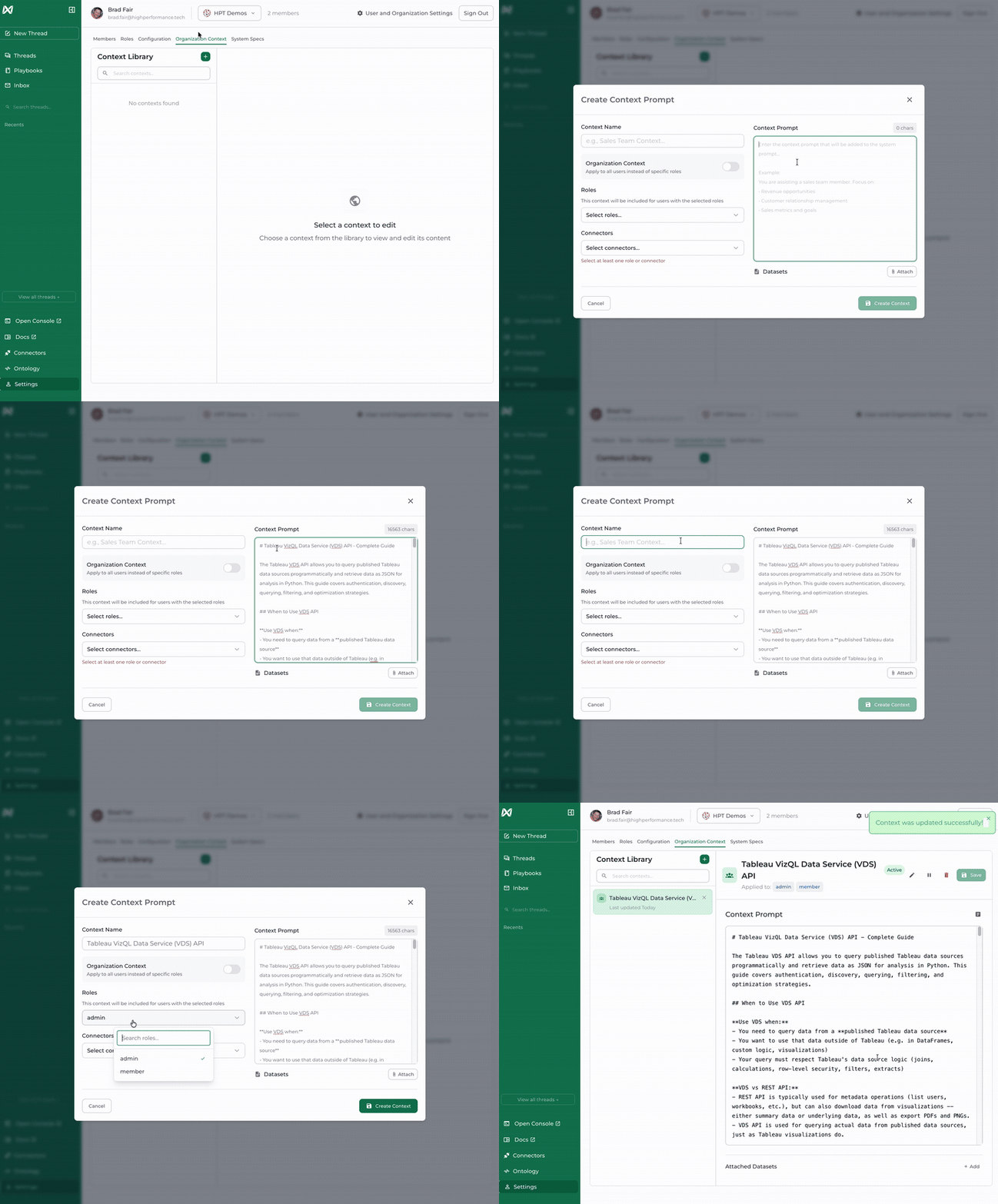
To be clear, this context is not strictly required! It just allows Ana to cut through some repetition and trial-and-error, which saves us time and money. It took some iterating, and we ultimately landed on context that includes:
- Authenticating to Tableau - using a Personal Access Token, in this case; more on that in a moment...
- Finding the data source - using the good old-fashioned REST API
- Exploring fields/metadata - using the new VDS API
- Constructing queries
- Analyzing results and iterating
- Filtering strategies
- Performance tips
- Common patterns:
- Simple query
- Searching with fuzzy matching
- Complex filtering
- Error handling
- Additional resources
With that in place, we need to ensure Ana can authenticate to the Tableau APIs when it needs to.
Setting Up Authentication
Personal Access Tokens (PATs) are credentials you create in Tableau that let you authenticate to Tableau APIs without using your own username and password. They are revocable, and they keep you from exposing your actual credentials in various systems, scripts, or configuration files. If your Tableau account uses multi-factor authentication (MFA), like Tableau Cloud accounts often do, then PATs are required for programmatic access since it can be difficult to complete an MFA challenge within an automated workflow.
Creating a PAT in Tableau is very straightforward, and you can see a step-by-step guide here if you haven't done it before, or if you need a refresher: create and manage personal access tokens.
Note: Personal Access Tokens do have an expiration date on them! Based on my personal experience, it's useful to create a reminder a week or two before a PAT expires so you have a chance to create a new one and switch them out before it simply stops working. "A bit of prevention is worth a byte of cure", as they say.
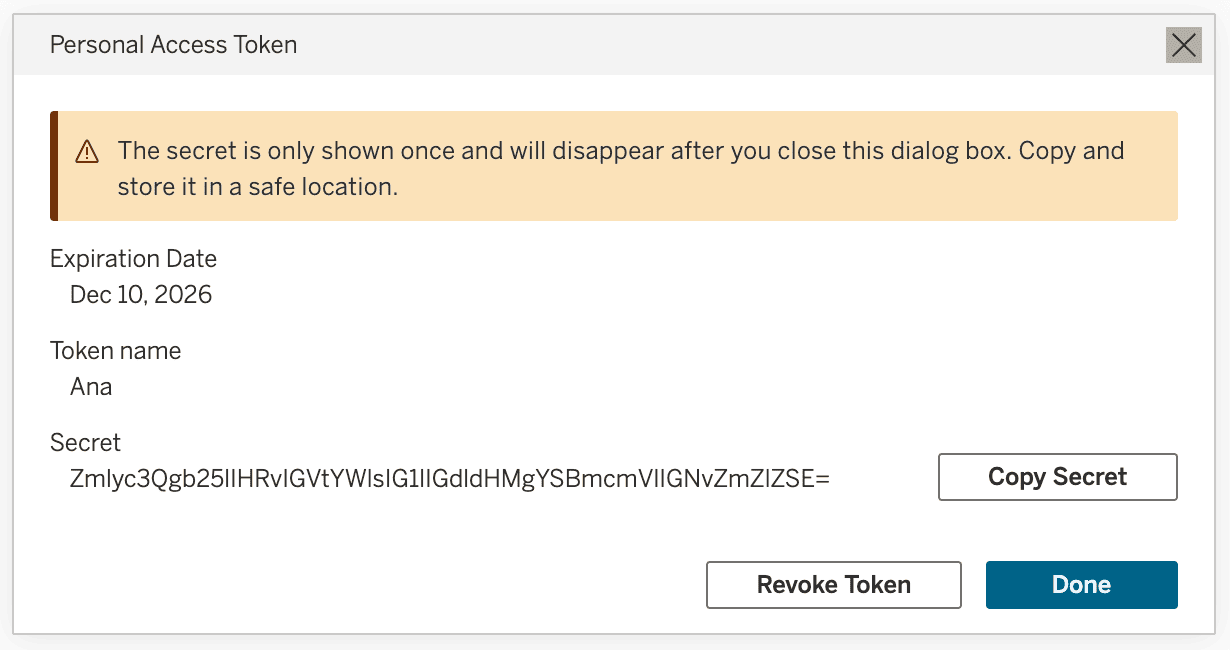
Now that we have a PAT from Tableau, we need to store that in a place Ana can find it: the Environment Secrets. As the name suggests, Environment Secrets behaves like a password manager for Ana, allowing it to reference sensitive information like credentials without having to type the details out in the code verbatim.
These secrets don't necessarily have to follow an exact pattern, because Ana can inspect them and determine the most appropriate way to use them. I prefer to store them as JSON with a little extra helpful information. In fact, if you downloaded the context snippet from earlier in the post, you'll want to follow the same structure I do. The structure is documented in the snippet, and the snippet's code examples depend on it. Here's what that looks like:
{"server": "https://tableau.example.com","tokenName":"YOUR_TOKEN_NAME","tokenSecret":"YOUR_TOKEN_SECRET"}From here, we navigate to the Settings > Configuration > Manage Secrets page, and create a new secret. We'll need to fill out:
- Secret Name - we refer to it as TABLEAU_PAT in our context snippet, so if you're following along, you should too.
- Secret Value - the single line of JSON above, filled out with the relevant values.
- Instructions - Ana sees these instructions in every chat context so it knows when to use which secret. Be sure to give it enough info to make those decisions! In this example, the instructions were: "Use this PAT to authenticate to Tableau Server using their REST API; the authenticated session can be used for other Tableau APIs as well."
- Docs Links - Any links to reference documentation that may be helpful when using the secret.
Here's what the screen looks like just before we click Create:
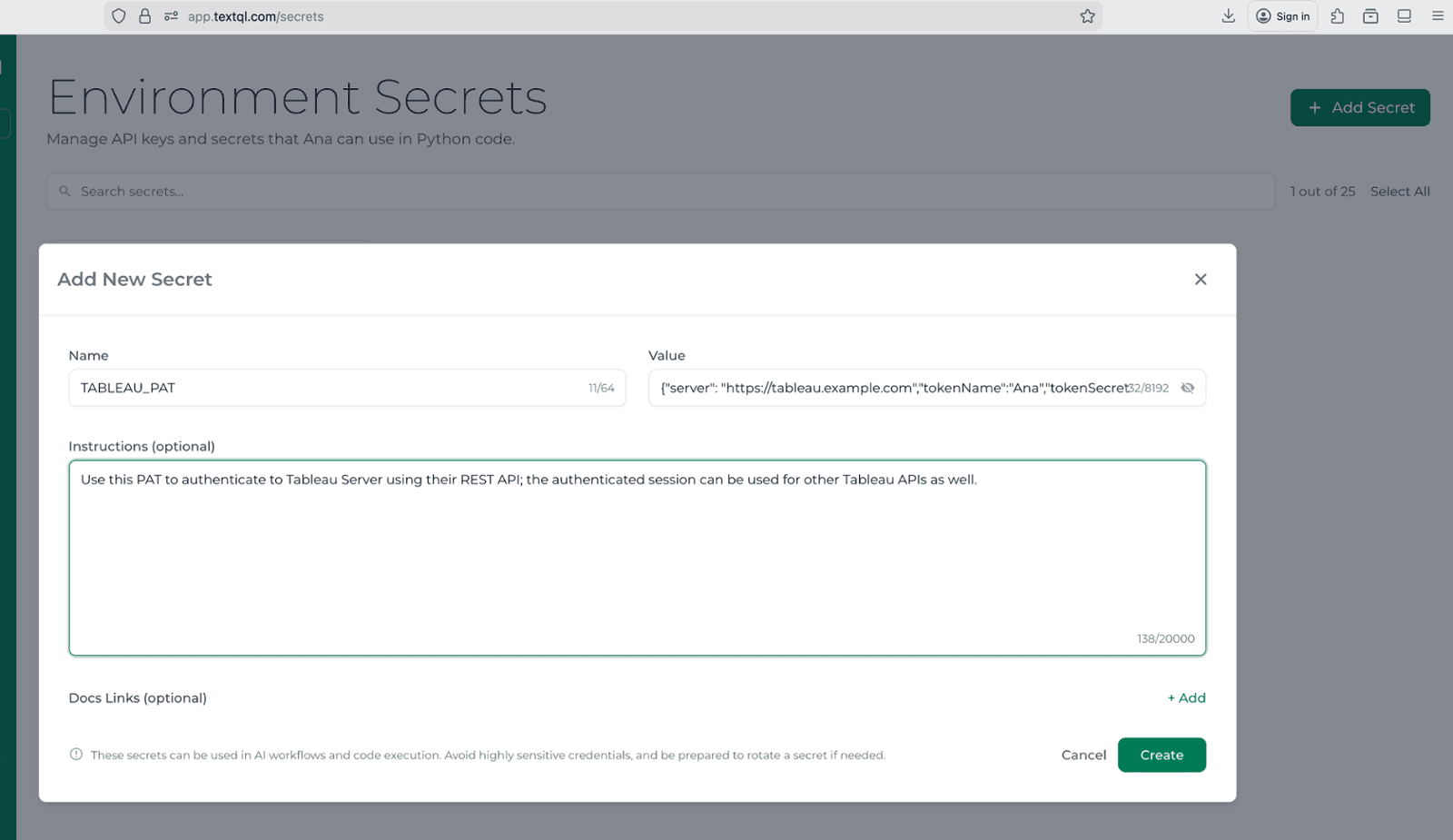
Note: After you click save, you won't be able to edit or view the secret's details again. If that's a concern for you, there's an easy and more flexible solution we typically use, but that'll have to be a different blog post!
At this point, we've given Ana enough information to:
- connect to Tableau using the URL and PAT details from the secret, and
- skillfully use the relevant APIs to authenticate, search for data sources, explore their metadata and data, and query!
Let's see how it works by creating a new thread and asking a question.
Chatting With Our Data
For demo purposes, we're using a demo dataset based on Microsoft's Contoso dataset.
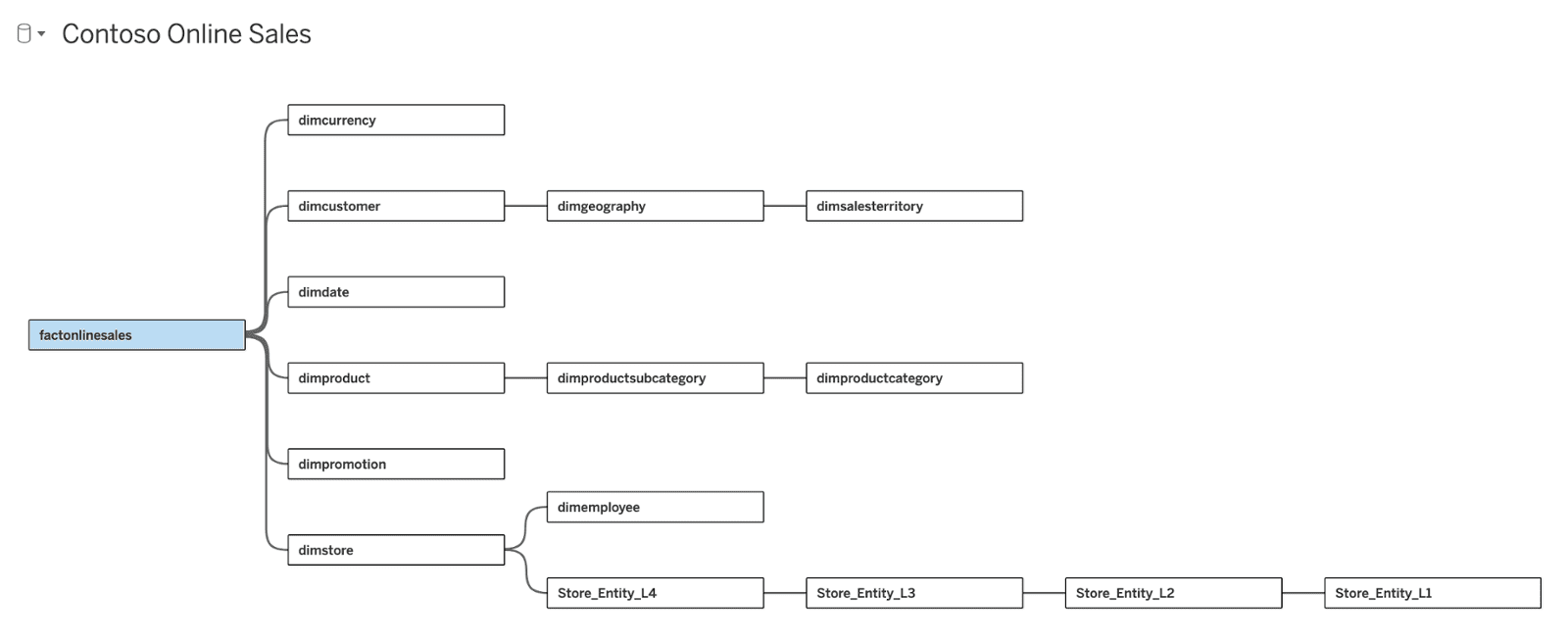
We have created a Published Data Source on Tableau Server that exposes the Online Sales fact table and all of the related dimensions, as well as some calculated metrics and KPIs. We have not included any details about the data source in Ana's context library, so it will have to explore a little bit to understand how to collect the data we ask it for. Here's that data model in Tableau, for your reference:
To keep things interesting, I'm going to ask a question with an intentional but easy-to-resolve error in it:
"Using the Contoso Online Sales data source, show me the sales over time for the customer named Tom Miller."
The dataset has a "Thomas Miller" in it, so it will be interesting to see how Ana handles the discrepancy there. And with that background information out of the way, let's see the chat!
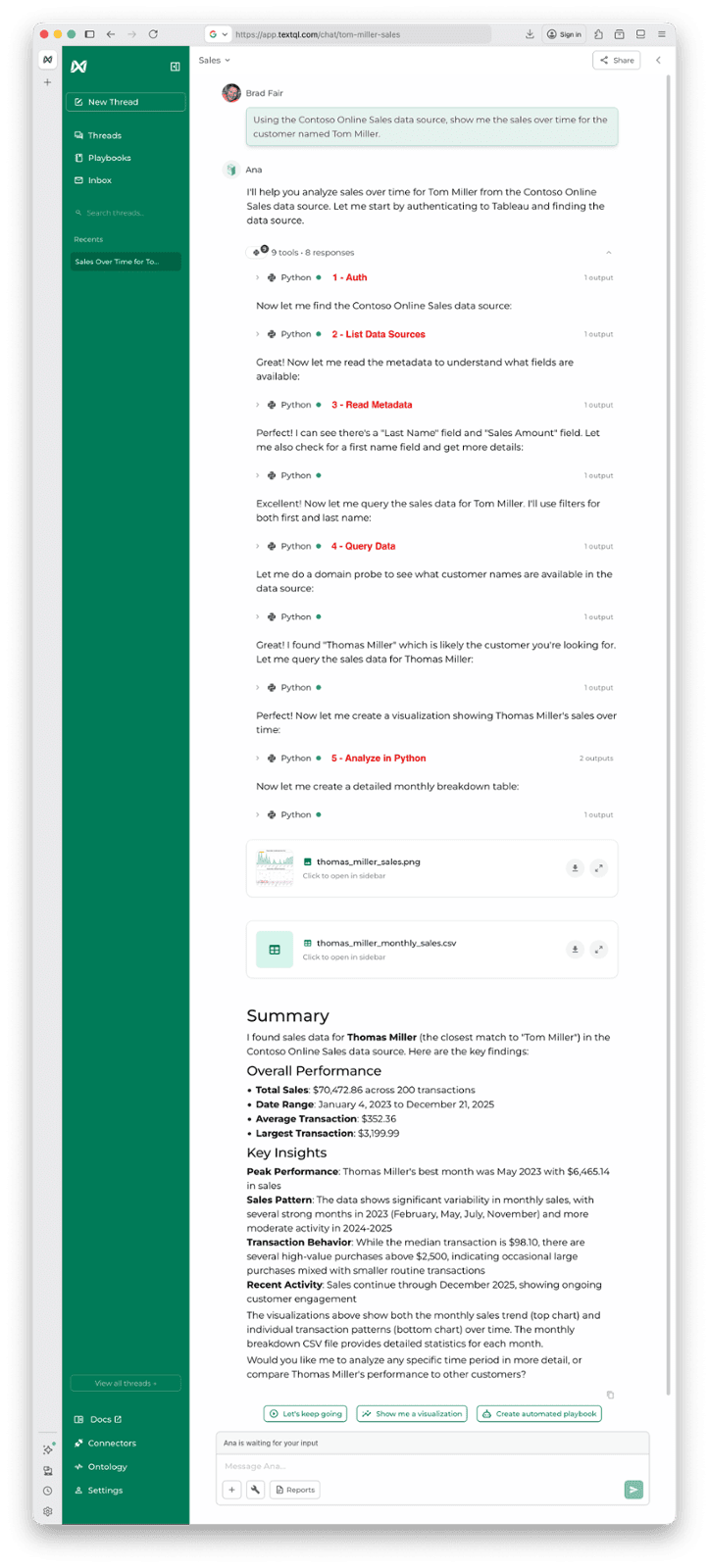
The chat has a few components to it:
- The response messages
- The tool call cells
- Artifact previews
- The summary response
In my mind, the interesting things happen in the tool call cells. We can see Ana follow the overall structure we detailed in the context library. It:
- Authenticates
- Lists Data Sources
- Reads Metadata
- Queries Data, and
- Analyzes in Python
Overall, everything went as well as we could hope, in seven individual API calls to Tableau! It handled the name issue pretty well. It queried using filters for the First and Last name, and found no results. Since it expected results but found none, it decided to look into the customer names to find similar names. There are a handful of approaches it could have used, but in this case it decided to search for similar names, found the full list of Millers. With the relevant names in context now, it determined that "Thomas" was likely the one I was asking about, and proceeded from there.
It then created and saved some visualizations of the data using python, as well as wrote the underlying data to a CSV. Finally, it responded with a summary of its findings.
It Works! Now What?
So we now have an agentic AI analyst capable of connecting to Tableau and querying the same Published Data Sources we use in our workbooks. We see it's capable of correcting course when things aren't exactly as it first thought. Where do we go from here? Below are a few use cases we've implemented already, and one we're about to implement:
Playbooks - Executive Summaries via Email or Slack
I mentioned Ana has a playbooks feature that allows you to schedule these analyses to be delivered on a recurring basis over Email, Slack, or Teams. We've implemented operational playbooks that surface actionable information around deal flow and accounts receivable aging. Users enjoy getting the relevant data delivered to them directly in Slack, and really enjoy being able to ask follow-up questions in the same thread.
Exploring Complicated Database Schemas
We've already seen that Ana is adept at course-correction if something seems off about its findings. Similarly, it's also very good at exploring database schemas and determining how data relates. We have implemented Ana for users who need to uncover specific data without spending a ton of time digesting complicated schemas and ERDs. Ana's iterative discovery process makes easy work of that, and the context library allows users to improve Ana's efficiency over time as it discovers the relevant relationships within the data. Of course, there are several great approaches to mapping out the data models in advance, but that's out of the scope of this post.
In-Dashboard Chats
This is the one we're most excited to try next: embedding Ana directly inside of a dashboard, giving users a way to ask relevant questions about the data that's right in front of them at the moment.
Come see this demo live!
Want to see a live end-to-end demonstration of what you just read above? Come see the process start-to-finish, so you can do this with your own Tableau environment! Click the big red button below to register. Even if you can't make it live, we'll send all registrants a recording of the webinar once it wraps up.
Live Webinar · Dec 18
Unlock AI-Powered Analytics on Your Existing Tableau Data
Want to skip the line and get started now?
Schedule a time to talk with us about our Ana Quick Start, where we guide you and your users through the "getting started" phase so you can see immediate value.